Sign in
Cherry Studio integration guide
RecommendedAdvanced featuresUpdated: 2025-11-26Introduction
Cherry Studio is a capable AI desktop client built for developers and power users. Beyond standard chat, it offers several advanced features:
Key capabilities
- 🤖 200+ AI models — reach the full SeaWhale AI model catalog
- 🔧 MCP server integration — let the model call external tools and services
- 📚 Local knowledge bases — question your private data through the embedding API
- 💭 Reasoning mode — deep thinking with reasoning models such as Qwen3 and o1
- 🔄 OpenAI API compatible — connects to the standard interface
- 🖥️ All platforms — Windows, macOS and Linux desktop apps
Use cases
| Use case | Description | Recommended models |
|---|---|---|
| General chat | Everyday questions, writing, translation | GPT-4, Claude, Qwen-Plus |
| Tool calling | Web scraping, database queries and more through MCP | GPT-4-Turbo, Claude-3-Opus |
| Knowledge base Q&A | Precise answers grounded in your private documents | Qwen-Plus, GPT-3.5-Turbo |
| Deep reasoning | Step-by-step analysis of complex problems | Qwen3-Thinking, o1-preview |
Demo
The example below shows what Cherry Studio can do: import a rate-limiting document → integrate a web-scraping MCP tool → explore solutions to a rate-limit error
Highlights
- ✅ Reads local document content automatically
- ✅ Calls MCP tools to fetch data from the web
- ✅ Combines the knowledge base with live information to propose a solution
- ✅ Shows the full reasoning process
Note: real-world response speed depends on the model you choose and your network conditions.
Quick start
Before you begin
Make sure you have:
✅ Cherry Studio installed
- Download the installer for your platform from the Cherry Studio website
- Supports Windows 10+, macOS 11+ and major Linux distributions
✅ A SeaWhale AI API key
- Sign up in the SeaWhale AI console
- Generate an API key on the API management page
- Make sure your account has enough balance
✅ A model in mind
- Review the model list to compare capabilities
- Choose a model that suits your use case
- Confirm your API key can call that model
Configuration
1. Add SeaWhale AI as a provider
- Launch Cherry Studio and click the ⚙️ Settings button in the top right
- Choose Model services in the left menu
- Find Custom provider or click Add provider
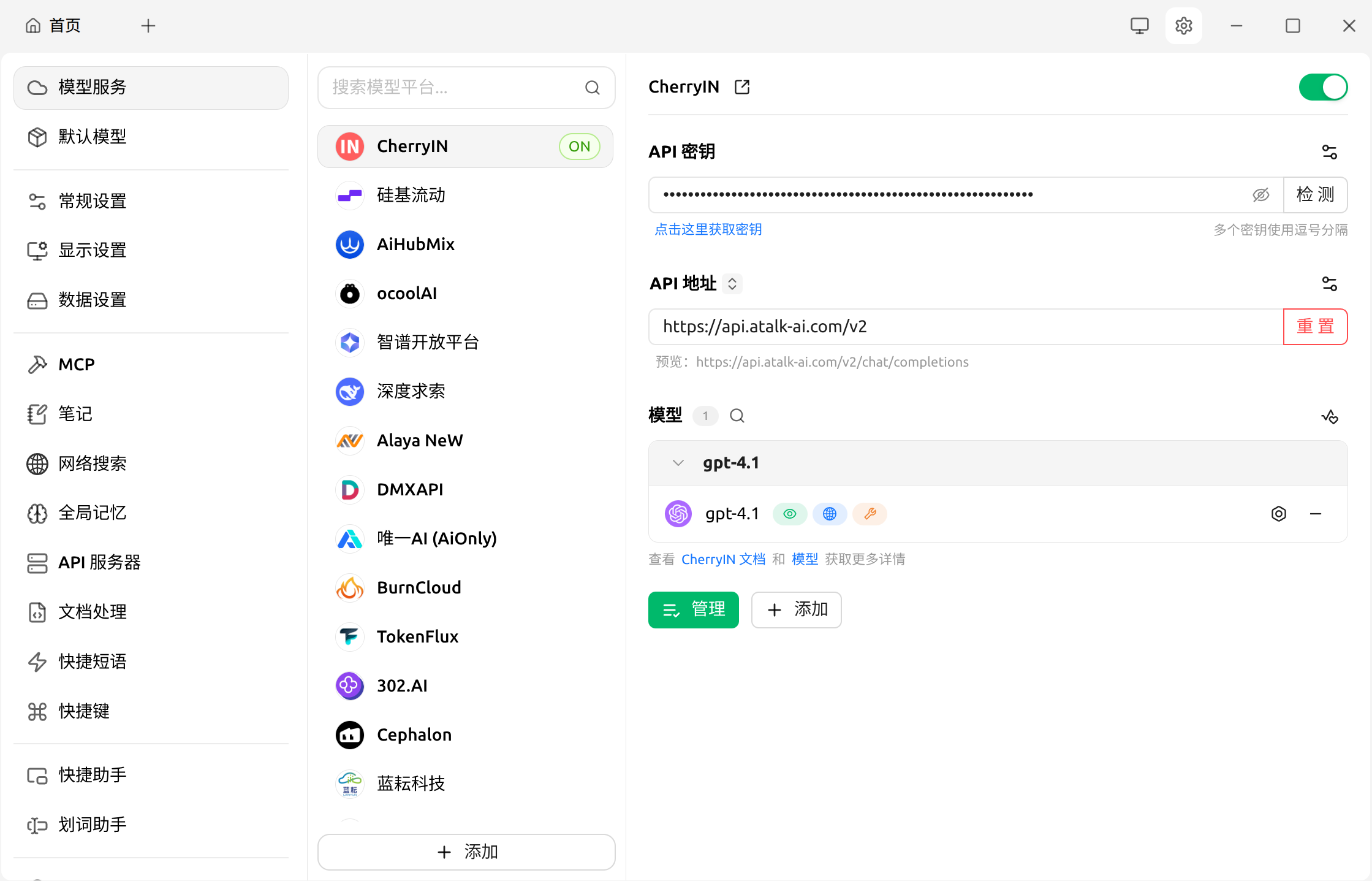
2. Configure the API parameters
Fill in the configuration panel:
| Setting | Value | Notes |
|---|---|---|
| Provider name | SeaWhale AI | |
| API type | OpenAI compatible | Choose OpenAI Compatible |
| API address | https://api.seawhaleai.com/v2 | The SeaWhale AI API endpoint |
| API key | sk-xxxxxxxxxxxxxxxx | Your API key |
| Model ID | gpt-4.1 | Or another model name |
Recommended model configurations
Top performance
Model ID: gpt-4.1 Name: GPT-4.1 Notes: OpenAI's latest flagship, strong reasoning and coding
Multimodal specialist
Model ID: gemini-2.5-flash Name: Gemini 2.5 Flash Notes: Google's latest, fast with very long context
Coding assistant
Model ID: claude-4-sonnet Name: Claude 4 Sonnet Notes: Anthropic's flagship, excellent code understanding and generation
See the full model list
3. Verify the configuration
- Click Save or Test connection
- A "connection successful" message means the configuration is correct
- Back on the main screen, the new model appears in the model picker
Common mistakes
- ❌ Do not add a trailing slash to the API address
- ❌ Make sure the API key has no stray spaces
- ❌ Model IDs must match exactly and are case sensitive
Usage guide
Scenario 1: simple chat
The most basic use, good for quick testing and everyday conversation.
Steps
- Click 💬 New chat on the main screen
- Select the SeaWhale AI model you just configured (such as
gpt-4.1) - Type a question, for example: "Who are you?"
- Wait for the response
Example conversation
markdown
👤 User: Who are you?

🤖 AI: I'm an AI assistant. I can help you:

- Answer questions of all kinds
- Write and translate documents
- Write and debug code
- Offer ideas and brainstorm

What can I help you with?
Toggling reasoning mode
For models that support reasoning (such as gpt-4.1), use the 🧠 Think button beside the input box to turn reasoning mode on or off. When enabled, the AI shows its full reasoning process.
Scenario 2: MCP tool calling
MCP (Model Context Protocol) lets the model call external tools and services, greatly extending what it can do.
What is MCP?
MCP is a standard protocol that lets AI models:
- 🌐 Access web content
- 🗄️ Query databases
- 📊 Read and analyze files
- 🔧 Call arbitrary APIs and tools
Configuring an MCP server
- Find MCP servers in Cherry Studio settings
- Click Add server
- Select or configure the MCP tools you need, for example:
- Web scraping — fetch live web content
- Filesystem — read and write local files
- Database — query database data
Example
markdown
👤 User: Fetch the title and main content of example.com

🤖 AI: Sure — let me use the web scraping tool...

[Calling MCP tool: web-fetch]
URL: https://example.com
Status: 200 OK

📊 Result:
Title: Example Domain
Main content: This domain is for use in illustrative examples...
Recommended MCP tools
- fetch — web content retrieval
- filesystem — local file operations
- sqlite — SQLite database queries
- github — GitHub repository access
- puppeteer — browser automation
Advanced features
Reasoning mode
Some models (such as the Qwen3 and o1 families) support deep reasoning and can show their full thought process.
Models with reasoning support
| Family | Model ID | Reasoning | Notes |
|---|---|---|---|
| Claude 4 Sonnet | claude-4-sonnet | Optional | Strong reasoning and analysis |
| Claude 3.7 Sonnet | claude-3-7-sonnet | Optional | Balances capability and cost |
| Claude 4.5 Opus | claude-opus-4.5 | Optional | Strongest reasoning |
| Claude 3.5 Sonnet | claude-3-5-sonnet | Optional | Fast-responding reasoning model |
How to use it
- Select a model that supports reasoning
- Click the 🧠 Think button beside the input box (where it can be toggled)
- Ask your question and watch the reasoning unfold
Example: a multi-step word problem
markdown
👤 User: Alex has 15 apples, gives 1/3 of them to Sam, buys 8 more,
then splits them evenly with Jordan. How many does Alex have left?

🤖 AI: [Thinking...]

💭 Reasoning:

1. Apples given to Sam: 15 × 1/3 = 5
2. Alex has left: 15 − 5 = 10
3. After buying 8 more: 10 + 8 = 18
4. Split evenly with Jordan: 18 ÷ 2 = 9

✅ Answer: Alex has 9 apples left.
Multimodal capabilities
Some models accept image input.
Models with vision support
- GPT-4 Vision —
gpt-4-vision-preview - Claude 3 family —
claude-3-opus,claude-3-sonnet - Qwen VL —
qwen-vl-plus
How to use it
- Select a model with vision support
- Click the 📎 Attach button in the input box
- Upload an image (JPG, PNG or WebP)
- Ask a question about the image
FAQ
Q1: How is this billed?
SeaWhale AI bills per token, charging input and output separately.
| Cost component | What it covers | How to reduce it |
|---|---|---|
| Input tokens | Text sent to the AI, including context | Limit conversation history |
| Output tokens | The AI's generated response | Cap the maximum output length |
| MCP calls | Tool invocations, billed per call | Combine related operations |
Cost-saving tips:
- 💡 Use gpt-4.1-mini for simple tasks (lower cost)
- 💡 Clear conversation history you no longer need
- 💡 Set a sensible max_tokens limit
See the detailed pricing
Q2: What if an MCP tool call fails?
Common errors and fixes
Error 1: MCP server not responding
Cause: the MCP server did not start correctly, or the connection timed out.
Fix:
- Check the MCP server status
- Restart Cherry Studio
- Check your firewall settings
- Review the MCP server logs
Error 2: Tool not authorized
Cause: the model does not have permission to call that tool.
Fix:
- Enable the tool in Cherry Studio settings
- Confirm the model supports function calling
- Check your API key permissions
Error 3: Tool execution timeout
Cause: the tool took too long to run.
Fix:
- Increase the timeout (Settings → MCP → Timeout)
- Optimize the tool's execution logic
- Use a faster MCP implementation
Related resources
Recommended reading
- 📚 Quick start — SeaWhale AI API basics
- 🔧 API reference — the complete API documentation
- 🎯 Model list — every available model
- 🛠️ MCP protocol docs — learn more about MCP
Best practices
Performance
Model selection strategy
Simple tasks    → gpt-4.1-mini (fast, inexpensive)
Complex tasks   → gpt-4.1 (higher quality)
Chinese tasks   → DeepSeek-V3 (optimized for Chinese)
Reasoning tasks → qwen-plus (shows its thinking)
Context management
- Keep conversation history under about 10 turns
- Use a knowledge base rather than a very long context
- Clear conversations you no longer need
MCP tool usage
- Combine related operations to reduce call count
- Cache frequently used data
- Set sensible timeouts
Security recommendations
Security
- 🔒 Never share your API key
- 🔒 Rotate your API key periodically
- 🔒 Monitor for unusual call patterns